Welcome :)

Welcome :)

Saturday, March 30, 2013

Eight helpful apps for teachers and educators :)

There are lots of advantages to be had by employing tablets in the classroom at various levels of education. You can encourage greater student engagement and an expansion of the learning environment beyond school hours. Hardware is only part of the jigsaw, though. You also need the right software to help engage those eager young minds. If you’re using tablets with your students then you’ll appreciate great educational apps.
We’ve already looked at the best back to school apps for students to help them keep organized, but what about teachers? How about a communication network built with teacher-student relations in mind? Apps for scheduling and recording attendance could prove handy. There are also some great options for creating tutorials and accessing information on different subjects. Let’s take a look at the best apps for teachers and educators.
We’ve already covered Evernote and Dropbox in the student app roundup, but before we begin it’s worth mentioning that both are great tools for teachers as well. Evernote allows you to create notes of all types and there is a version of Evernote for schools. Dropbox is ideal as free cloud storage for safely backing up and sharing your files.

Edmodo (Free)


The advantages of having a safe, closed social network for your class are obvious. This completely free app works with the iPad or Android tablets and it allows teachers and students to stay in touch outside the classroom in an appropriate way. It is completely free, easy to set up, and it allows the discussion to continue after that bell rings. Teachers and students can share content, it can be used as a conduit for new information or notifications, and it even allows students to submit assignments and receive grades.
The ability for teachers to post assignments, give students access to digital libraries of relevant resources, post messages, polls and quizzes, and create calendars is invaluable. It’s also possible to set up specific learning groups or even set up groups for discussions with other teachers or parents. A public Edmodo API is in the works which will allow the platform to be integrated with other systems and apps and will no doubt make it more useful. There’s already a Chrome extension for quickly adding resources to your library.
It can be adapted for a variety of uses and potentially replace a learning wiki or a moodle site. As a completely free resource, Edmodo is definitely worth a look.
Android | iOS

Teacher’s Assistant Pro: Track Student Behavior ($10)


You have to stay organized in the classroom, but it can be very difficult to accurately remember everything and keep a record of student behavior without some help. Teacher’s Assistant Pro allows you to keep a set of records for each student in your care and offers a solution for quickly and easily recording any important information about them. Good or bad behavior can be accurately noted so the information is at your fingertips for the next parent-teacher meeting.
Contact details are there if you need them and you can email specific incidents directly from the app. You can also add photos and notes, and filter the student list using various parameters. This app really allows you to cut down on paperwork and it keeps vital information available. If you have security concerns, don’t worry, because you can PIN protect it to prevent snooping students from getting a look when your back is turned.
Sadly there is no Android version of this one, but teachers with Android tablets could try Teacher Aide Pro for similar functionality.

ScreenChomp (Free)


Creating tutorials has never been easier. The clever idea behind ScreenChomp is that you can record your iPad screen and your own narration as you sketch out and explain an idea. You can sketch on a plain background or choose an image from your camera roll. As you sketch, you can explain what you are doing, and then you can share the video with students or other educators by sending them the unique URL.
It’s a really smart idea and very easy to use, but there is no Android version right now.

Educreations (Free)


This is another interactive whiteboard app that allows you to create easy to follow tutorials for students. You can also record audio to narrate your actions and it even supports simple animations. Create diagrams, commentary, or instructions for any topic and then share the videos through email, Facebook or Twitter. There’s no Android version of this either.

Splashtop Whiteboard ($20)


You can use this app to turn your Android tablet or iPad into an interactive whiteboard. You can control presentations via Wi-Fi from anywhere in the classroom. You can also use the app to annotate content and create tutorials. It is basically a remote desktop app designed specifically for educators using interactive whiteboards and it integrates seamlessly with most existing whiteboard technology.
Android | iOS

TED (Free)


An unmissable educational resource featuring fascinating lectures from industry and subject matter experts on a very wide variety of topics, you can’t go wrong with TED. You’ll find hundreds of TED Talks in video and audio form through this free app. Some of them are perfect for showing to students and sparking discussion and debate, others can serve as inspiration for educators creating new lesson plans or lectures.
Android | iOS

Zite (Free)


Here’s a free app that allows you to create a personalized magazine for a specific topic. Tell it what you’re interested in and the app will suck in relevant blog posts, news articles, videos, and articles. It learns about your preferences over time and serves up more of the content you want. This app is ideal for teachers who want to stay on top of a subject and find the latest news to share with students without having to spend hours scouring the Web.
Android | iOS

Blackboard Mobile Learn (Free)


The idea here is to allow educators and students to easily access all the courses and content they need through a smartphone or tablet. It can also be used to send out notifications and assignments, and like Edmodo, it can be good for sharing information and discussing topics. If your school supports the app you’ll be able to take full advantage of the feature list, but you can also get a personal license which costs $2 per year or $6 for life.
The app ties in with Dropbox and, for many educators, it simply provides a great way of accessing relevant documents outside the classroom.
Android | iOS
Do you know of any other great tablet apps for teachers? Post a comment and share them.

Microsoft updates requirements for 7- and 8-inch Windows 8 tablets made by partners :)

Microsoft has finalized the requirements its partners must meet to create 7- or 8-inch tablets running Windows 8 or Windows RT. According to the company’s March 2013 Windows Certification Newsletter, the devices must have a minimum resolution of 1024 x 768 pixels, which is down from the previously mandated 1366 x 768 pixels. The change is intended to offer more flexibility for partners that are “exploring designs for certain markets.” Based on the popularity of inexpensive  7- and 8-inch tablets in the past year, from iPad minis to the Galaxy Tab 2 to the Kindle Fire, this is probably the market Microsoft has its eye on.
There will be one notable absence with these partner-made tablets: they won’t support Microsoft’s snap feature, which allows users to run two Windows 8 apps side by side. Not only will the feature not be on the tablets, but they must have disclaimers that state as much. While snap is certainly handy for multitasking and has a “cool factor,” it seems unlikely that its loss will be enough to alienate customers. The reduced screen size would probably make the feature less useful anyway. Plus, if shoppers are looking for a low price point, they most likely will be ready to make some sacrifices on features.
The big question Microsoft and its partners will need to face is whether the same people who are interested in small tablets made by Apple, Amazon, Samsung, or Google will also want to see a petite tablet powered by Windows 8. Sales of the Surface RT and Surface Pro haven’t been stellar, so it’ll be a crapshoot whether the new options in size and manufacturer will be enough to turn a bigger profit for Microsoft.

Using Windows Phone 8: Helpful tips and tricks :)

Windows Phone 8 launched in late 2012. It was another roll of the dice for Microsoft in the mobile space and it was fairly well received by the tech press. It’s a slick platform that’s packed with features and customization options. We’ve already discussed how to take a screenshot on a Windows Phone and we recently looked at five ways to customize your Windows Phone 8 start screen, but there’s always more to uncover.
In this roundup we’ll explore some Windows Phone 8 tips and tricks. Feel free to add your own suggestions in the comments at the end.

How to Customize your Start Screen

You can change the size of tiles by holding your finger on them to activate edit mode. You can drag it around and tap the arrow at the bottom right to change the size. You can change the background color in Settings > Theme. Be sure to check out our recommended ways to customize your Start Screen, as well.

How to use your Unified inbox

With WP8 you have the ability to merge your email accounts into one manageable inbox. Go to your Mail app and tap the ellipses in the lower right hand corner and choose link inboxes. You can choose to link as many as you like, so it’s possible to merge a bunch and still keep some separate. You can always unlink them again.

How to use built-in Shazam-clone ‘Name that tune’

You don’t need the Shazam app to recognize a tune you like. Windows Phone 8 has music recognition built-in. All you have to do is tap Search and then choose the music icon (it’s a musical note) and it will listen for a few seconds and then tell you what song is playing and provide you with a link to buy it in the Windows Phone Store.

How to enable Kids Corner

There’s no need to install a parental control app because WP8 has Kid’s Corner. You’ll find the option in the Settings menu and it allows you to dictate exactly what content is available when Kid’s Corner is activated. It allows you to give your little angel your smartphone without fear that they’ll send a text or email, phone someone, or do something else crazy.

How to conserve battery life

If your battery is getting dangerously low, you can head into Settings and select battery saver. It closes background apps and puts a stop to automatic syncing so that you can squeeze a little extra time out of that battery. If you tap the Advanced option in battery saver then you can set it to come on automatically when your battery dips below a certain percentage.

How to share your location

When you write a text, you can actually add your current location to the message. Simply tap the paperclip icon and choose your location. If your friend has a WP8 device it will open in their Maps app, otherwise it will open in their browser.

How to use keyboard shortcuts

When you are typing, you can hold your finger down on a key to get more options to pop up instead of jumping into the symbols keyboard. You can also double tap the space bar to create a period and a space for the next sentence. You’ll find word suggestions pop up as you type. If you type a word that isn’t recognized you can always add it to your dictionary by holding down your finger on it and choosing the plus symbol when it pops up.

How to stop accidental photos

Having a hardware button for quick camera launch can be handy, but you might also end up with some pocket interior shots. If you want to disable the button you can do it in the Photos app settings where you’ll find an option to prevent accidental camera launch when the phone is locked.

How to scan QR codes, Microsoft tags, or translate text

If you press the Search button on your phone you can also use it to scan QR codes or Microsoft tags. All you have to do is tap the Vision icon (it’s an eye) and then point your phone’s camera at the code in question. You can also use this function to scan text and then translate it into a new language, so it’s potentially handy for trips abroad.

How to quickly send out apologies if you’re running late

If you’ve entered appointments into your calendar along with attendees then you can quickly send messages when you are running late. Just go to the relevant appointment in your calendar and tap the rushing person icon. A draft message will pop up and you can edit it and set the recipients, or just hit send.

How to hide your caller ID

You can decide who should see your caller ID when you make calls – everyone, your contacts, or no one at all. To change this just go into your caller history, tap the ellipses at the bottom right, and hit Settings. Then choose who gets to see your caller ID by default.

How to change the text size

If you find yourself squinting at the screen of your Window Phone then you should really consider resizing the text. Go into Settings > Ease of access and you’ll find five different size settings for the text.

More Windows Phone 8 tips

That’s it for now, but if you have any more handy Windows Phone 8 tips to share then please post a comment and tell us about them. We’ll update this article with new tips from time to time.

This week in Facebook :)


Facebook’s press invite for an event on April 4, which we think has to do with an HTC Facebook phone, is bound to overshadow all other things Facebook, but that doesn’t mean all the other Facebook news from this week isn’t important. So here are all this week’s Facebook stories, rounded up to keep you in the loop.

Anchored navigation bar with status updates

facebook anchored status updates photos
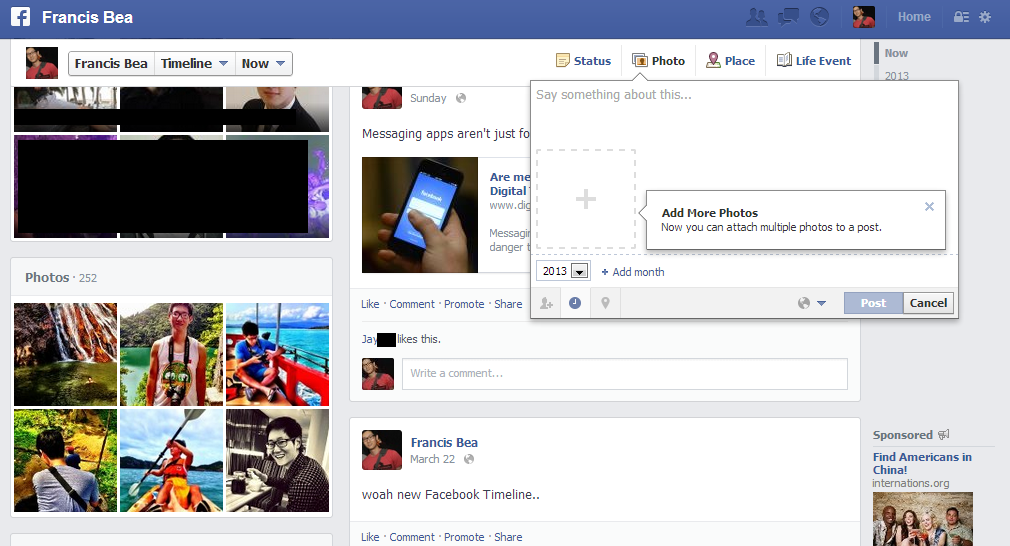
Here’s a new feature we’ve noticed for those of you with the new Timeline. If you scroll down the page, the Status, Photo, Place, and Life Event tabs will suddenly follow you. That’s because these tabs are anchored to a navigation bar that includes buttons with your name, “Timeline,” and “Now” on the left of the bar. To encourage users to share content on Facebook even if we’re scrolled all the way down the page, the anchored navigation bar will give you a quick way to post a status update or photo. You can also attach multiple photos in one fell swoop.

Nested comments roll out to Pages

 Facebook nested comments
We’ve seen nested comments and the ability to reply before, but that was only made available inside of Facebook’s commenting widget used in blogs. But starting with Facebook Pages that have more than 10,000 followers, the social network is turning on the ability to reply to comments come July 10 of this year. In addition, the most “active and engaging conversations” within posts on these pages will bubble up to the top of the post “ensuring that people who visit your Page will see the best conversations,” Facebook’s Journalism Program Manager Vadim Lavrusik writes.
The feature was in the testing phase since November, and while it has rolled out to these eligible pages and some user pages as well, it’s only available on the desktop app. You’ll have to wait before threaded comments pop up in its mobile apps and added into Facebook’s Graph API.

Mark Zuckerberg is forming a political group in his free time?

zuckerberg and governer chris christie
What does the man that has everything do with his spare time? Jump into politics, apparently. Bloomberg reports that Facebook’s CEO is calling other dignitaries within the tech community to form a political group with him. Zuckerberg has shown an interest in politics before, holding a town hall meeting for Obama in 2011 and a political fundraiser for New Jersey Governor Chris Christie (note he donated $100 million to Newark schools in 2010) – he also “Liked” presidential candidate Mitt Romney’s Facebook Page, and Facebook’s PAC spent $267,000 on political donations in 2012 (between January and September).

Facebook retiring “Facebook Credits” in favor of local currencies

facebook local currency payments
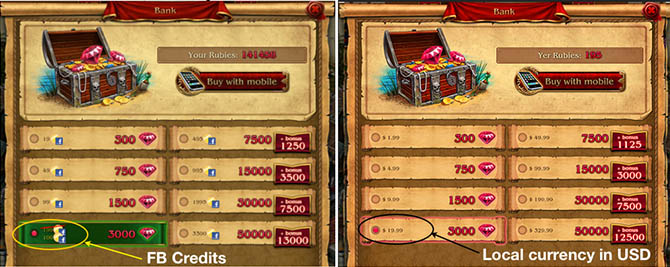
How much is a Facebook Credit worth? Not many people would be able to answer that. If you’re curious, a single Credit is valued at $0.10. Developers were forced to charge in-app purchases based on Facebook’s $0.10 increments, says Facebook Engineer Yongyan Liu, so Facebook is meeting its developers’ needs and rolling out local currency payments. What this means is that developers can now charge as much as they want (reasonably we hope) for in-app purchases in the gamer’s preferred currency, whether that’s in USD, Euros, or Yen. The local currency payment structure will take effect starting sometime in Q3 2013.

DT

Friday, March 29, 2013

Facebook is – finally – unveiling the Facebook Phone April 4 :)

Mark Zuckerberg has done a good job, thanks to the help of his PR team, of brushing off Facebook Phone rumors to a point that we in the media just haven’t given up on. But lo and behold, Facebook has sent out invitations to a press event on April 4 to “Come See Our New Home On Android.” Speculation says we can expect to see an Android OS tweaked to Facebook’s liking on an HTC handset.
Deny as Facebook may, the social network stole away key Apple iOS developers and just about every “Facebook insider” can’t keep their mouths shut. And at the same time, looking at Facebook’s recent releases should more than hint it’s going all-in on mobile: Poke, Facebook Messenger, and the Instagram acquisition. This upcoming announcement likely has something to do with Facebook pushing its Web app to the wayside and forcing developers to access Facebook through their mobile devices to concentrate on its mobile products. The Facebook’s future hinges on mobile, and clearly we’re about to see to what extent.
Recent reports have pretty much figured out what the phone will look like. 9to5Google’s sources say it will feature a beveled design with rounded edges, something of a nod to Apple’s iPhone, and that there will be a Facebook home button. The last feature shouldn’t be news to you if you’ve ever seen previous (failed) smartphone collaborations with HTC and Nokia. Earlier “Facebook phones” like the HTC ChaCha and Nokia Asha 205 both had a prominent Facebook home button. The size of the display is rumored to be 4.3 inches.
The phone is suggested to run a 1.5Gz processor, 1GB of ram, 16GB of storage, along with a 5 megapixel rear camera and 1.6 megapixel camera on the front. according to UnwiredView.
Hardware is likely an afterthought of the Facebook phone, however. What Facebook wants to do with this device is sell is the experience and solidify itself as a lifestyle brand.
It also gives Facebook an unprecedented amount of access to even more of our data and user habits. It has access to your calendar, contacts, what time you’re most active on your phone (maybe to ping you with alerts), location, along with mounds and mounds of other data. This is information that Facebook has been trying to get us to provide – but with the phone, it wouldn’t have to try. It would already have it all.
This resurrects the digital age old question of how willing we are to let Facebook into our lives. The social network is no stranger to privacy concerns, and handing over all our mobile data is asking quite a lot. The device’s success will hinge on what Facebook can offer us in return.

BlackBerry wants you to come out and play :)

BlackBerry
The times, they are a changing.’ It wasn’t all that long ago that RIM (now operating under the name BlackBerry) was the handheld device for business, and only business. The Canadian-based telecommunications company seemed to be perfectly content to control the enterprise side of things while Apple and Android battle over the average consumer. But then a funny thing happened on the way to controlling the market.
Where five years ago RIM was standing atop the smartphone world, it has since fallen to the combined market assault of its competitors and gone from leader to a distant third.
There are many reasons for this, but the obvious one is that RIM painted itself into a corner. Its reliance on business customers gave Apple and Android makers a wide open field to expand into. Once they were established, also appealing to business users was an easy step, especially as both Apple and Android continued to nurture their own software for home and businesses. RIM on the other hand, has had a tougher time of going the other way and appealing to the average smartphone user who may be interested in the handset for business, but only as a part of the overall experience.
Part of that overall experience includes games, something that RIM has never really been big on, to say the least. So it is something of a surprise to see BlackBerry at GDC, appealing to game developers to check out the new BlackBerry 10. So why the change of heart?
“Because games matter,” Volker Hirsch, Director, Global Head of Business Development told us.
Hirsch and BlackBerry know which way the proverbial wind is blowing. The days of trying to appeal to a single market and still retain a healthy market share are over, especially when it comes to electronic devices. Manufacturers like Apple, Samsung, and HTC make phones that offer something for everyone, whether that person is into business features, media apps, games, or more likely, all of the above. Phones and tablets need to be powerful and efficient, and they need to do everything.
“The days where you’d say this is a handset for a working mom, and this is a handset for a 10 year old kid, and this a handset for a business person, and this is a handset for a gamer, are over,” Hirsch said.
The BlackBerry 10 is a powerful device, powerful enough to attract mobile gaming  developers that have helped to push the technology forward. And beyond the power of the hardware and OS – which is at least comparable to other smartphones in general terms – the code is clean and simple, which makes it easy for developers to work with it and add to their own games thanks to the functionality of the OS.
For example, the new OS has the ability to add in BlueTooth gamepads. Other devices have the option to use some game peripherals, but it is usually a difficult process to adapt – or at least one that takes time. BlackBerry has the ability to use console quality gamepads with minimal fuss. That helps convince developers that BlackBerry has something to offer that others may not. At the very least, there is no reason not to work with the company.
The goal is to re-introduce BlackBerry as a flexible device that anyone can use. When the new OS launched, it contained 70,000 apps. Of those, more than 30-percent were games. But will it be enough to change the image?  After the release of the BlackBery 10, BlackBerry’s subscriber base fell. It is far from being out of the competition, but it will need a major comeback to come anywhere near its earlier market dominance.
The ability to play most mobile games won’t win fans over on its own, but it will help. The biggest issue BlackBerry may face is that it has a perception problem among potential users. It needs to convince adopters that BlackBerry 10 is the complete package.
“It’s not only about games,” Hirsch said. “We have a very powerful package all round. And now it actually comprises the greatest games as well.”

AMD plans for the cloud, once again teases the fastest graphics card you can’t buy :)

AMD wants to capture the hearts and minds of gamers, wherever they are.
The semiconductor maker has been on a roll lately in the console game arena, with design wins on all three major systems. The PlayStation 4 is running an AMD APU (accelerated processing unit) – which combines GPU and CPU functions on a single chip – while the Wii U is using AMD graphics for its realtime rendering. And if the rumors are correct, the next generation Xbox will also sport an APU.
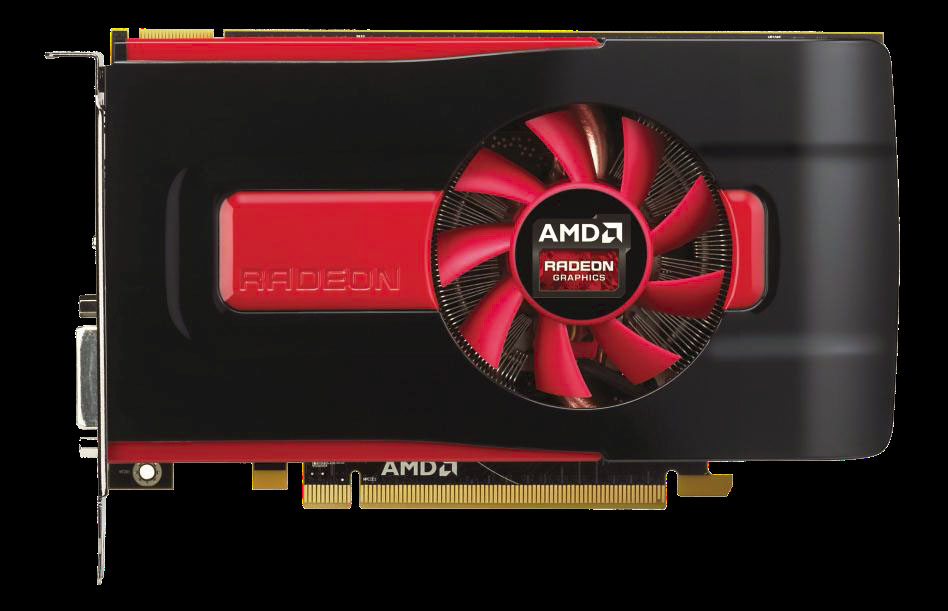
On the PC gaming side, AMD’s recent launch of the budget-friendly Radeon HD 7790 gives gamers with stock 1080p displays access to reasonably good PC game performance in modern games at a $150 price point.
However, gaming is going to the cloud in a big way. Straightforward game download services like Steam or EA Origin, or full-on games delivered from the cloud like OnLive and  CiiNow (and soon the PS4 via Gaikai technology), mean cloud-based gaming is here to stay. Hardcore gamers may not be interested in the 720p interactive video streams delivered by companies like CiiNow, but more casual, on-the-go gamers might appreciate access to current generation titles on their tablets, thin-and-light notebooks, or HDTV sets.
However, it’s not a simple problem to solve. The companies that are delivering cloud gaming simply can’t use a standard PC graphics card to deliver these services. That would mean each gamer they serve would need their own, dedicated card, which is cost prohibitive in multiple ways. In the large data centers needed to serve up cloud gaming, a single card per user would require more servers, more racks, and more power.
The answer is a concept known as virtualization. Many games don’t require all the potential horsepower of even a single GPU. Imagine if a single, high-end GPU could deliver games to two, three, or even more users.
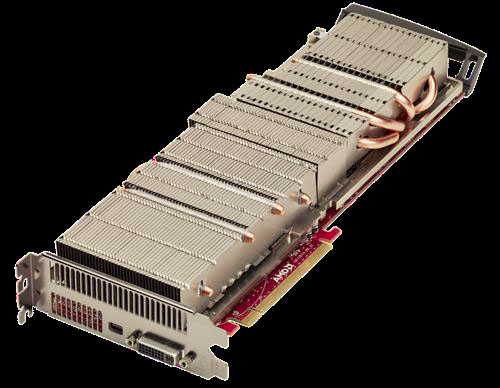
That’s one of the key ideas behind AMD’s new Radeon Sky series GPUs. The Sky isn’t a product that end users will buy for their home PCs. Instead, it’s a solution for large server farms, allowing cloud gaming services to integrate multiple graphics cards into a server chassis, and therefore increase the overall GPU density in a server farm. AMD will be delivering three different Sky products:
  • The dual GPU Sky 900, offering 3584 total stream processors and 6GB of GDDR5 graphics memory (3GB per GPU).
  • The single GPU Sky 700, with 1792 stream processors, which includes 6GB dedicated to that one GPU. Both the 700 and 900 GPUs are very similar to the high end desktop GPUs used in AMD’s Radeon HD 7950 and 7970 products.
  • The Sky 500, with 4GB of GDDR5 and 1280 GPUs.
All three are capable of rendering multiple games for different users at the same time, while also handling the critical task of converting game frames to a compressed, H.264 video stream that’s delivered to gamers wherever they might be. The Sky products are also passively cooled, which improves power usage and heat efficiency in server farms.
Radeon SkyThe problem is that AMD is a little late to the party. Nvidia has already begun delivering complete server solutions for cloud gaming with its GeForce Grid products, and has been delivering GPUs with virtualization for cloud gaming for over a year now. AMD hopes that it’s passively cooled solutions will prove more attractive in the long run, but it will be an uphill battle.
AMD further claims it has the fastest PC gaming graphics card on the planet with its Radeon HD 7990 dual GPU graphics card (pictured at the top of the article). The HD 7990 uses to Radeon HD 7970 GPUs along with 3GB of fast GDDR5 memory for each GPU (6GB total.)
The problem: you can’t buy one today.
AMD has been talking up the 7990 for months now in various techn media sites, but no actual products have been forthcoming. Asus did ship a card with dual Radeon HD 7970 GPUs in its Ares II card, but that required specialized cooling and cost a bundle.
radeon hd 7790AMD trotted out the 7990 once again at GDC, and once again discussed its fabulous performance, but refused to disclose pricing or a delivery date. So at this point, the Radeon HD 7990 is simply vaporware. Nvidia has been shipping its dual GPU GTX 690 since May, 2012, and has had good success with its recently released behemoth single GPU GTX Titan card.
When will gamers actually be able to plunk down real money for a real HD 7990? It’s likely that AMD is still working out kinks with clock rates, power and cooling. But the company can’t afford to wait too long, or it’ll risk letting the competition take an insurmountable lead in the market.